
How to Disable Intel Smart Sound Technology (Step by Step)
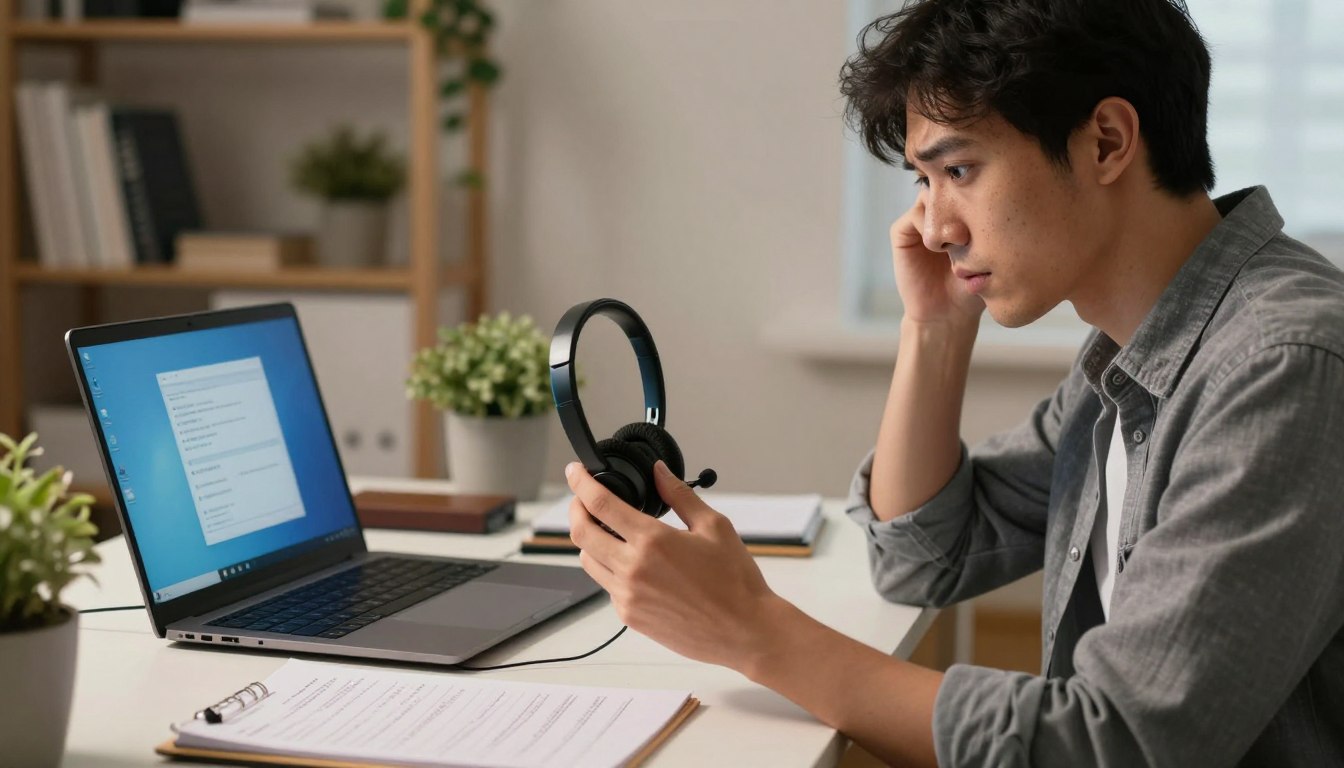
A specific audio problem, such as a USB headset cutting out, can make disabling one Intel SST component worth testing when Intel Smart Sound Technology may be involved. For Windows users, this is a targeted troubleshooting test, not a guaranteed fix. The computer’s built-in audio may also depend on the component you change.
You can use the steps below to make one reversible change and judge its effect on your audio. Avoid changing several devices at once, so you can tell what helped or made the problem worse.
Key Takeaways
- Change only the Intel SST component tied to the problem.
- Built-in speakers or microphones may stop working.
- Test the affected device and built-in audio afterward.
- Re-enable the component if the change removes needed audio.
- Use the computer maker’s driver package for model-specific repairs.
What Intel Smart Sound Technology Does and When to Disable It
Intel SST is a digital signal processor that manages audio, voice, and speech functions on many Intel-based computers. Intel Core and Intel Atom computers use it, and its parts can sit between Windows and audio hardware. That role makes it relevant to some sound or microphone issues.
Disabling a component may help investigate a conflict, but it can also remove audio functions that rely on it. A separate USB headset or interface has its own connection and hardware; it is not the same as the computer’s integrated audio-processing path.
A targeted test can help identify a conflict, but it may also interrupt built-in audio that depends on the component.
OED means the Operating System Enhancement Driver, an Intel SST component that may appear under System devices. The name can look unrelated to sound, so check the full entry before changing it. Smart Sound Technology may also include separate entries for a controller, microphones, or USB audio.
Audio issues that justify a temporary test include a microphone that loses signal, sound that cuts out after a driver change, or an external interface that Windows does not handle reliably. A test makes less sense when the problem affects every output or began after unrelated system changes.
What Intel SST handles
Intel Smart Sound Technology processes audio and voice tasks, including input from microphones and some audio devices. A USB headset can follow a different path from built-in speakers, though its connection may still interact with Intel SST components.
Related Posts:
- How to Disable Intel Smart Sound Technology A…
- How Much Does the Technology Industry Generate in…

- Has Technology Changed Society The Profound Social Impact

- Is Fashion Technology a Good Career Merging Design…

- How Data Loss Prevention Technology Works Protecting…

- How Laser Scanning Technology is Used in Surveying…

Audio problems that may justify a temporary test
Try a single component change when one device fails while other audio works, or when a specific interface conflicts with the system’s audio controller. Disabling Intel SST does not guarantee better performance or fix every sound technology problem. If the problem affects only one external device, test that device after changing only its related Intel SST entry.

How to Disable Intel Smart Sound Technology in Device Manager
For most Windows users, the most direct test is to disable only the Intel SST entry tied to the failing audio path in Device Manager. Choose carefully: the wrong entry can stop a microphone or built-in sound from working.
Disable one relevant component at a time, then test the affected device and built-in audio. Names and locations differ by system, and not every computer lists every component.

Identify the Intel SST component that matches the problem
Open Device Manager and expand Sound, video and game controllers. Look for Intel Smart Sound Technology Audio Controller or an Intel Smart Sound Technology for USB Audio entry that matches the issue. Do not disable an unrelated audio device just because it appears nearby.
The Intel SST OED may instead appear under System devices. Use the entry name and the audio path you are troubleshooting together. This comparison can help you find the closest match:
| Device Manager entry | Typical location | Audio path to check |
|---|---|---|
| Intel Smart Sound Technology Audio Controller | Sound, video and game controllers | Audio controller |
| Intel Smart Sound Technology for USB Audio | Sound, video and game controllers | USB audio |
| Intel Smart Sound Technology for Digital Microphones | Sound, video and game controllers | Microphone input |
| Intel Smart Sound Technology OED | System devices | Operating-system enhancement component |
These entries are examples, not a list that every computer will show. A USB audio interface conflict may point to the USB Audio entry, while a built-in microphone problem may involve a different component.
Disable the component and check the result
Use this sequence to make a limited test:
- Open Device Manager from the Windows search box.
- Expand Sound, video and game controllers.
- Find the Intel SST controller or matching USB Audio entry.
- Right-click the relevant entry and select Disable device.
- Confirm the change, then test the affected audio device and built-in audio.
Windows 11 uses the same Device Manager path: open the app, expand Sound, video and game controllers, then disable the specific matching entry. Exact names can vary. If the test concerns an Intel Smart Sound Technology for USB audio entry, check the USB device rather than disabling the entire audio category.
Some computers offer an audio or Intel SST setting in BIOS/UEFI, but not all do. Menus depend on the manufacturer, so use that route only when the computer’s documentation identifies the correct setting. If built-in audio stops working, re-enable the component you disabled before trying a different repair.
How to Troubleshoot Intel SST Audio and Microphone Problems
If audio still fails after the targeted disable test, check the microphone signal and audio enhancements before replacing drivers. Start with the input: a silent microphone can point to an enhancement setting rather than a failed device.
Uninstalling an audio driver is different from disabling a device. Uninstalling removes its driver software from Windows, while disabling turns off the selected device without removing the driver.
Check microphone signal and audio enhancements
Use this checklist to test each sound path before changing drivers:
- Test every available input, including Microphone Array 2 if it appears.
- If a microphone has no signal, turn off enhancements in Additional device properties.
- Repeat the microphone test for each input device.
- Turn off output enhancements in Settings > System > Sound if they may cause trouble.
- Retest the same audio device after each settings change.
Microphone enhancements may be under the Enhancements or Advanced tab in Additional device properties, depending on the manufacturer. Windows output-device enhancements are available through Settings > System > Sound. A no-signal result makes the enhancement check especially useful.
Uninstall and reinstall an Intel SST driver
If settings do not resolve the problem, you can uninstall an audio device’s driver in Device Manager and restart the PC. Windows may reinstall the driver automatically after restart, but that is not guaranteed. Keep the affected device name handy so you can check whether the audio returns.
If updating or uninstalling the audio driver does not solve the issue, try Windows’ generic audio driver. It may restore basic sound, but it may not bring back every feature supported by your computer’s original audio package.
Troubleshoot Intel SST OED Code 10 and Bluetooth audio
An Intel SST OED Code 10 error can stem from driver incompatibility, a damaged installation, or a conflict in the audio system. Check the package for your exact computer model before trying another driver. For Bluetooth problems, a confirmed Dell issue involved Intel Smart Sound Technology for Bluetooth Audio driver version 10.29.0.8719.
For that Dell Bluetooth case, uninstall Intel Smart Sound Technology for Bluetooth Audio and Intel Smart Sound Technology for USB Audio in Device Manager. When prompted, select the option to remove the driver, then reboot. Do not apply those two-driver steps to unrelated computers or audio problems.
After each driver or enhancement change, retest the same microphone or output device so you can identify which change mattered.
How to Choose and Install the Right Intel SST Driver
The safest Intel SST driver for a laptop is the package its manufacturer provides for that exact model. Model-specific software is more likely to match the hardware and Windows setup. Do not mix generic Intel drivers into the manufacturer’s recommended driver sequence.
Use the exact-model driver package and follow its listed order instead of combining packages from different sources.
Find the support page for your laptop model and follow its driver order: chipset, Intel Management Engine, Intel Serial IO, Intel SST, then Realtek/audio. Restart when the installer or manufacturer calls for it. Avoid adding generic Intel driver software during this process, since it may not match the laptop’s tested setup.
Use the driver made for your exact computer model
Intel Support directs users to the computer manufacturer for an Intel SST driver compatible with the specific device. For certain Windows 11 compatibility issues, compatible Intel SST Audio Controller versions are 10.29.00.5714 or later, or 10.30.00.5714 or later.
After installing a compatible Intel SST driver, allow up to 48 hours for Windows Update safeguards to clear and the audio stack to reinitialize. That wait applies to those compatibility cases; it is not a promise that every audio problem will resolve on its own.
A model-specific update can have narrow limits. For example, a VAIO update applies only to listed VJS125*, VJS126*, VJS134*, VJS135*, VJS145*, and VJS146* models with Intel SST Driver version 10.29.0.11525 or below.
The VAIO update improves operational stability, including when connecting to some videoconferencing systems with USB hub functionality. Restart the PC after applying it. The update is also distributed through Windows Update and requires the related AI Noise Cancelling Driver Ver.100.1.4.1467 program.
Intel Smart Sound Technology vs. Realtek audio drivers
Realtek is not a universal substitute for Intel SST. Use the Realtek audio driver only when the OEM driver package or instructions for your exact model call for it. The two drivers can serve different parts of the audio system, so removing one as a guess may leave a feature unavailable.
If you need to update or reinstall Intel SST and audio software, use the support page for the exact computer model, not an unrelated driver package. Check the model number and currently installed Intel SST version before applying any model-specific update.
Conclusion
A targeted Intel SST change is most useful when you verify its effect on the exact device that was failing. Test only the component connected to that problem, then check whether your built-in speakers and microphone still work.
If the test removes needed audio, restore the component rather than leaving the computer without a working sound path. For a repair that still needs a driver, use the OEM package listed for your exact computer model. Re-enable the component if the test leaves you without the audio you need, then use your computer maker’s support page to check the matching driver.
FAQ
What happens if I disable Intel Smart Sound Technology?
Disabling an Intel SST component may resolve a conflict with an audio device, but it can also stop built-in audio or features that rely on that component. The result depends on which entry you disable and how your computer routes sound. Test the device that had the problem, then check your laptop speakers and microphone before deciding to leave the change in place.
Is Intel audio service necessary?
Intel audio services may be necessary for the audio paths and features built into your computer. Their role depends on the computer’s audio design, including whether microphones or speakers rely on Intel SST. Disabling one component can affect those paths even if an external headset still works. If you are unsure which entry matters, leave unrelated audio devices enabled.
I’m experiencing trouble with Intel Smart Sound Technology OED drivers. What could be causing this issue?
OED driver trouble commonly comes from an incompatible driver, a damaged installation, or a conflict within the audio system. Check the exact computer model and compare its installed package with the manufacturer’s supported driver package. An OED entry can appear under System devices, so its location alone does not mean it is unrelated to audio.
How do I turn off Intel Smart Sound Technology?
Disable the specific Intel SST entry associated with the problem in Device Manager. Expand Sound, video and game controllers and choose the matching controller or USB Audio entry; the OED may appear under System devices. Names and locations vary by computer. Change one relevant entry, confirm, then test the affected device and built-in audio.
How do I fix a corrupted audio driver?
Uninstall the audio device’s driver in Device Manager and restart Windows. Windows may reinstall a driver automatically, but the replacement may not restore every feature. If the problem remains, install the compatible driver package for your exact computer model, or try Windows’ generic audio driver after updating or uninstalling has failed.
What are some common audio driver issues in Windows 11?
Common Windows 11 audio driver problems include missing sound, a microphone with no signal, devices that Windows does not recognize, and conflicts after driver or system changes. A headset may work while built-in speakers fail, or the reverse. Note which device is affected and test it again after each setting or driver change.
How do I uncorrupt my driver?
Uninstall the driver in Device Manager, then restart Windows so the system can attempt an automatic reinstall. That attempt may not restore the right version or every device feature. If the problem remains, install the compatible package from your computer maker’s support page for your exact model and Windows version.
Should I remove the Realtek audio driver?
No, do not remove the Realtek audio driver as a first troubleshooting step. Realtek may handle an audio function that your computer’s design needs, and Intel SST is not a universal replacement. Remove or replace Realtek only when the instructions or driver package for your exact computer model call for that change.
 Sally Miles